
Before you start
- Have access to the mailbox provider or SMTP/IMAP credentials.
- Confirm that the account is intended for outbound sending.
- Prepare DNS authentication and warmup plans before high-volume sending.
Steps
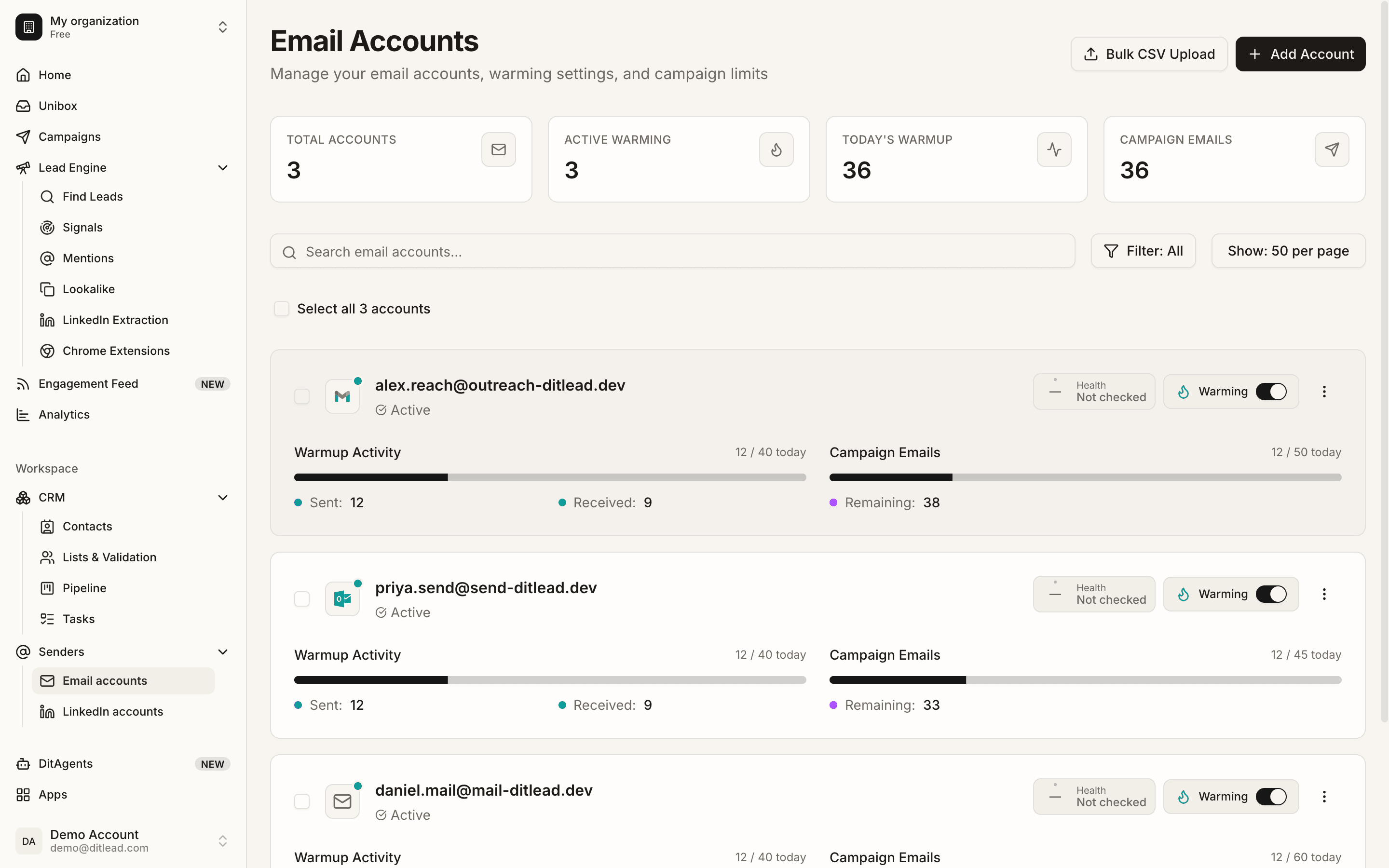
Open Email accounts
Go to Email accounts from the dashboard navigation. This page shows connected mailboxes, validation state, and account health.
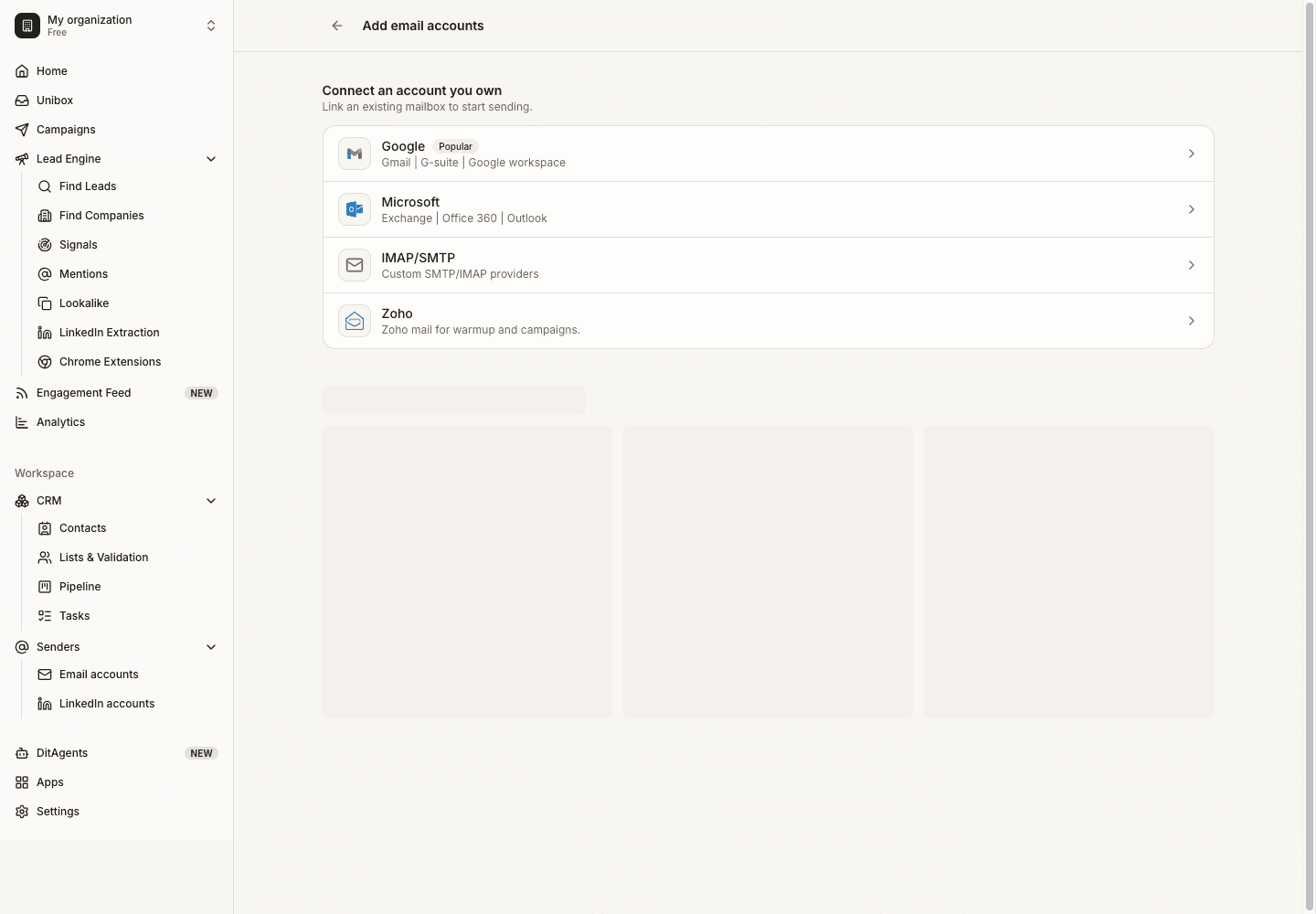
Choose an account type
Select Gmail, Microsoft, Zoho, or SMTP/IMAP depending on the mailbox provider. Use the provider-specific flow when available.
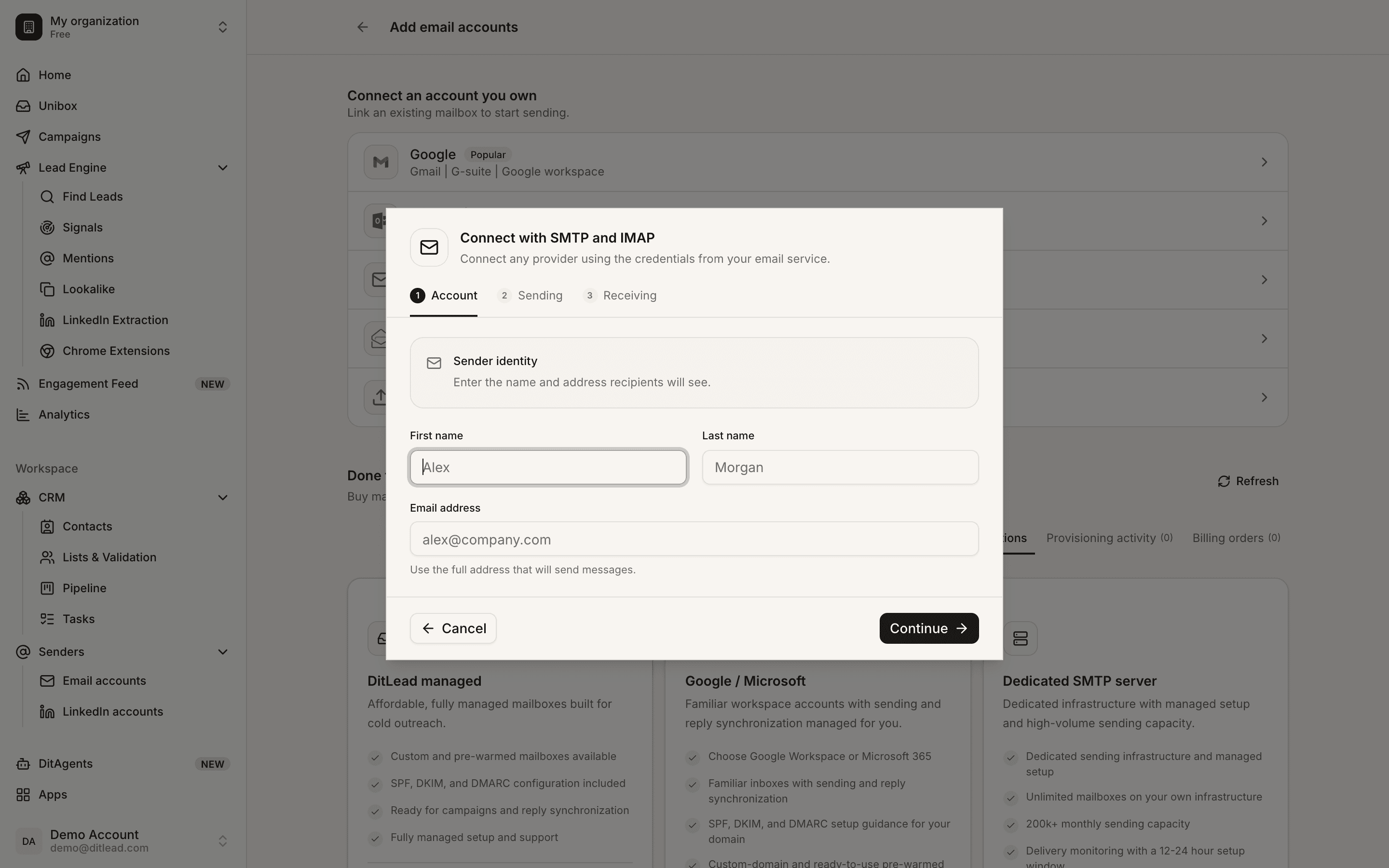
Connect or enter credentials
Complete OAuth or add SMTP and IMAP details. For custom SMTP/IMAP, both sending and reply tracking need to validate.
Validate the mailbox
Run validation and review errors. A mailbox should not be used in campaigns until DitLead can send and read replies successfully.
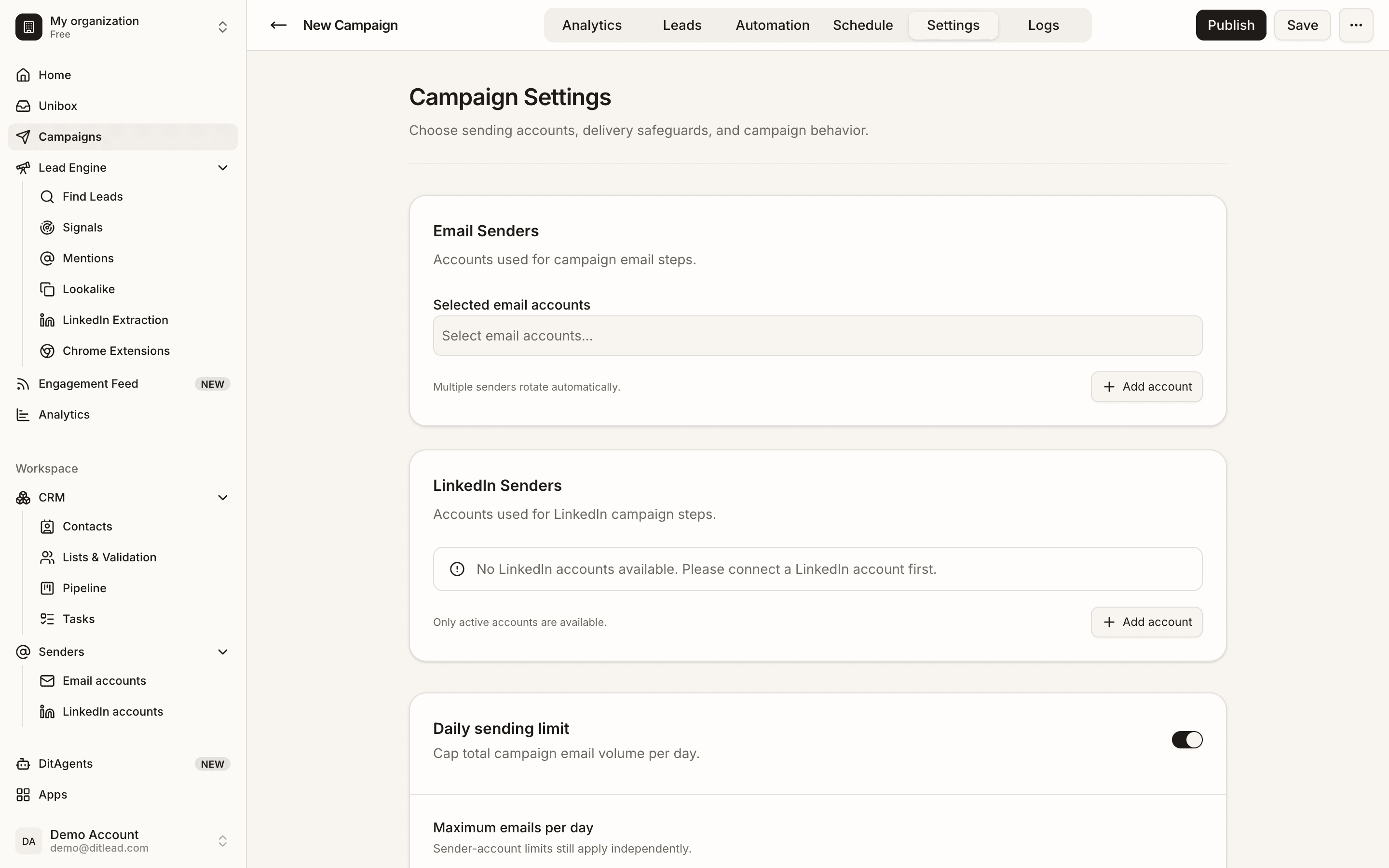
Assign accounts to campaigns
After validation, add the mailbox to campaign sender rotation and choose conservative sending limits.
What happens next
FAQ
Do I need both SMTP and IMAP?
For custom mailboxes, SMTP sends messages and IMAP helps DitLead read replies. Both should validate for reliable campaign operation.
Why is my mailbox not available in campaigns?
It may be disconnected, unvalidated, paused, suspended, or blocked by permissions or plan limits.
Connect mailboxes, validate SMTP/IMAP, warm up accounts, and choose conservative sending limits.