
Before you start
- Use a public company website that describes the product or service you actually sell. Your company domain supplies seller context; it is not the website of a prospect you want to contact.
- The preview can be started before creating an account. You will need an account and an eligible workspace to continue into campaign preparation.
- If your site is private, incomplete or unavailable, use set up without a website to supply a clear business brief manually.
Steps
Open Auto Outreach
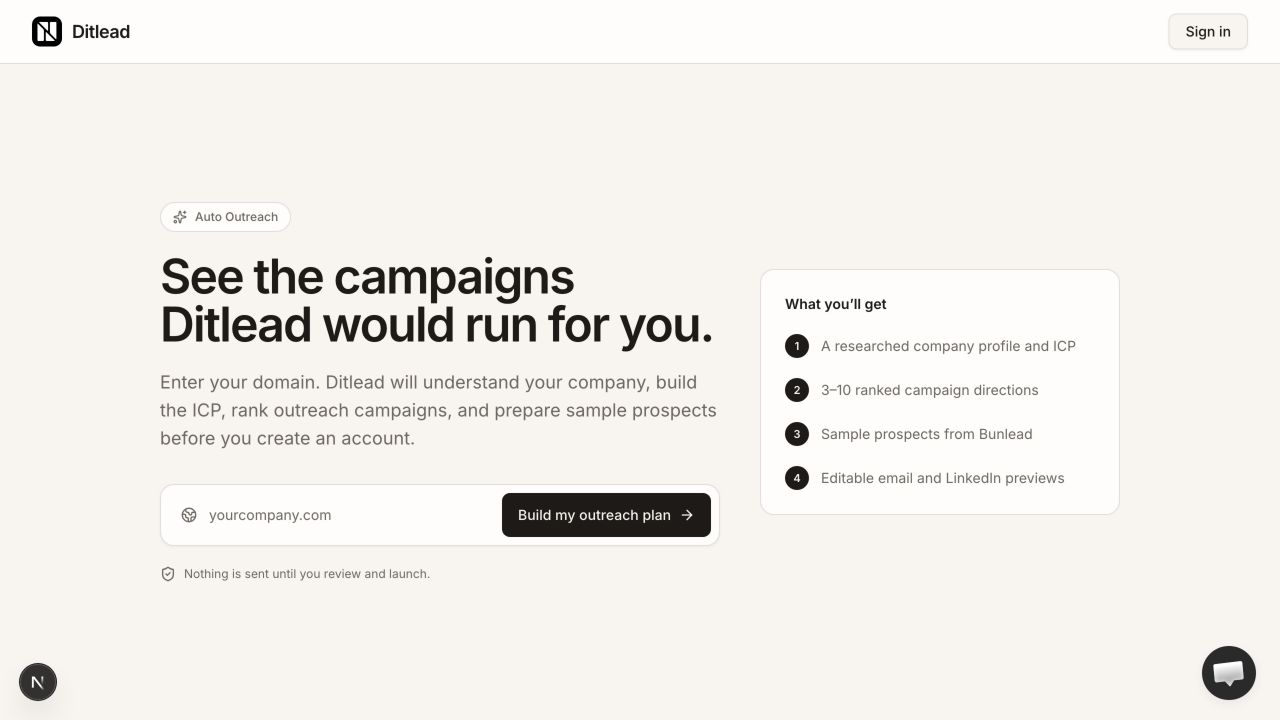
Use the website input on the DitLead home page or open Auto Outreach in the app. The entry page asks for Company domain. Enter the business domain, such as example.com; the app accepts a website URL and removes its protocol, www prefix and page path.
Build the preview
Choose Build my outreach plan. If the form asks for a valid company domain, check for spaces, an email address instead of a website, or a missing domain suffix. You do not need to enter your email password or mailbox credentials in this form.
Follow the research stages
The preview shows Company, ICP, Campaigns, Leads and Review. Website analysis identifies the business, then campaign directions are ranked and sample lead research follows. Some stages can finish before samples arrive. Keep the page open while it works; a campaign estimate is not the sample result.
Read the company summary
Check the company name, domain, analyzed pages and business description. Expand Read more when the summary is shortened. Confirm that the agent understood your offer and did not confuse your company with a similarly named business. An incorrect seller summary can lead to the wrong targeting and pitch.
Select an audience to inspect
Choose a campaign idea from the left-hand list. The main panel changes to that direction, showing the proposed audience and rationale. Read review audiences and sample leads before continuing. Selecting an idea determines which draft opens first; it does not restrict the claim to that one draft.
Use another domain when appropriate
Try another domain opens the domain entry control. Use it if you entered the wrong business. If the site is correct but the offer needs a more precise angle, continue with the preview and edit your offer and target audience in campaign context instead of treating repeated previews as an editor.
What happens next
FAQ
Which website should I enter?
Enter the website of the business whose offer you want to promote. Use your company’s public domain, not a search result URL, LinkedIn profile or a customer’s website.
Why are samples still loading when the preview is ready?
Company analysis and campaign planning can complete before live company and decision-maker research finishes. Read the sample state separately from the Ready to review planning state.
Will using Try another domain launch anything?
No. It changes the website being analyzed. Campaign sending is controlled in the workspace after publication and readiness checks.
Check your audience, messages, controls and readiness before handing over campaign management.