
Before you start
- Wait for the company and campaign directions to appear. Sample research may still be running even when the planning preview says Ready to review.
- Decide which buyer problem and offer the first campaign should address. A broad audience total is less useful than a small segment with a clear reason to respond.
Steps
Compare the campaign ideas
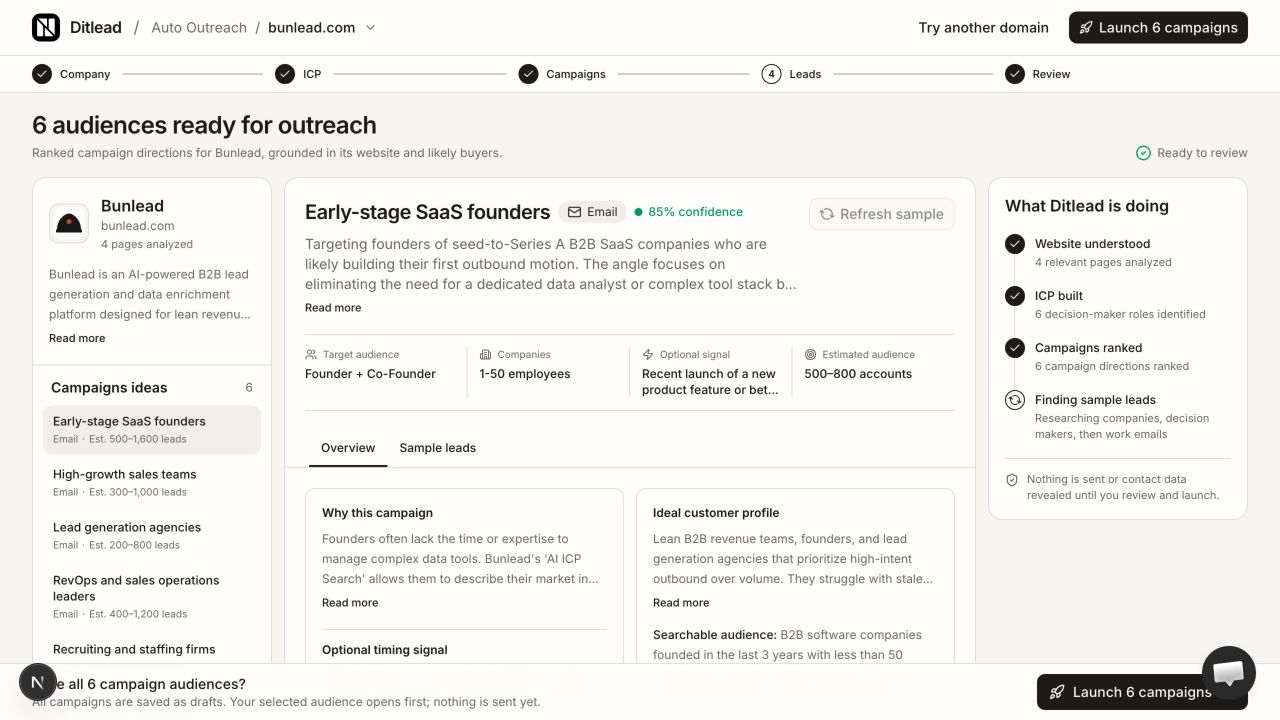
Select each relevant idea in the left panel. Compare channel, role, company type and proposed angle. An Email direction and a LinkedIn + Email direction have different account prerequisites. Do not choose an audience solely because its estimated volume or confidence percentage is highest.
Inspect target roles and company criteria
Check Target audience and Companies. Make sure the listed roles can influence the purchase and the company size fits your offer. Read the full searchable audience under Overview to check the geography and industry. Review an Optional signal as a proposed timing angle, not proof that every sample has that signal.
Read Why this campaign
Under Overview, inspect the problem the campaign is trying to solve and the Ideal customer profile. Expand Read more if necessary. Identify the statement you would use in a real buyer conversation. If the rationale depends on a benefit you do not offer, plan to correct the saved campaign brief.
Open Sample leads
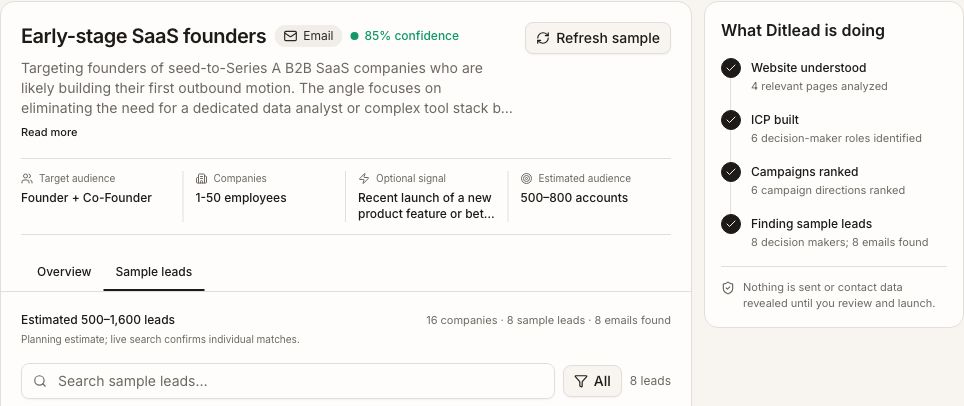
The Sample leads tab shows live research for the selected direction. Distinguish a pending search, no confirmed matches and returned results. Check the role and company fit of returned examples before using the audience. If the page shows an estimate while research is running, it is not a confirmed contact count.
Refresh only when the control is available
Refresh sample may be disabled while a sample job is already working. Let that job finish rather than repeatedly changing domains or restarting research. Delayed, retrying or temporarily unavailable states describe provider work; they do not mean an email was sent.
Choose the first draft to inspect
Select the audience you want to open first, then continue with Launch campaigns. The preview explains that all proposed audiences are saved as drafts and the selected audience opens first. Review the other drafts in Campaigns as well; choosing one preview is not the same as opting the others out of management.
What happens next
FAQ
Are the audience totals guaranteed lead counts?
No. They are planning estimates. Live research must confirm current companies, decision makers and usable contact routes. A large estimate does not guarantee replies or pipeline.
What does the confidence percentage mean?
Use it as a planning signal about the campaign direction, not as a verified lead score, accuracy guarantee or prediction of conversion.
Does Launch campaigns save only the audience I selected?
The website claim saves all proposed campaign audiences as drafts. Your selection determines which one opens first. Inspect the campaign list and the management state of other drafts.
Check your audience, messages, controls and readiness before handing over campaign management.