





To find companies using Shopify for B2B prospecting, start with a technology-based company segment, then check whether each account and buyer fits your offer. A list of famous Shopify brands and a filtered prospect audience answer different questions. This guide covers the filtered audience workflow.
Use platform fit only when it matters to the product or service you actually provide. A Shopify signal can help identify a compatible store; it does not establish revenue, a conversion problem, budget or buying intent.
Define one niche and a supported offer
An illustrative brief is an analytics setup service for UK ecommerce businesses with 10–50 employees. Choose a segment your team can serve, then define who owns store reporting. This example is a planning brief, not a verified count of matching stores or a tested sales result.
Include exclusions: businesses outside your service region, projects on unsupported systems, existing customers and contacts who opted out. If you serve an agency rather than a store owner, confirm the agency’s service offering from its own website; its own website platform is a different signal.
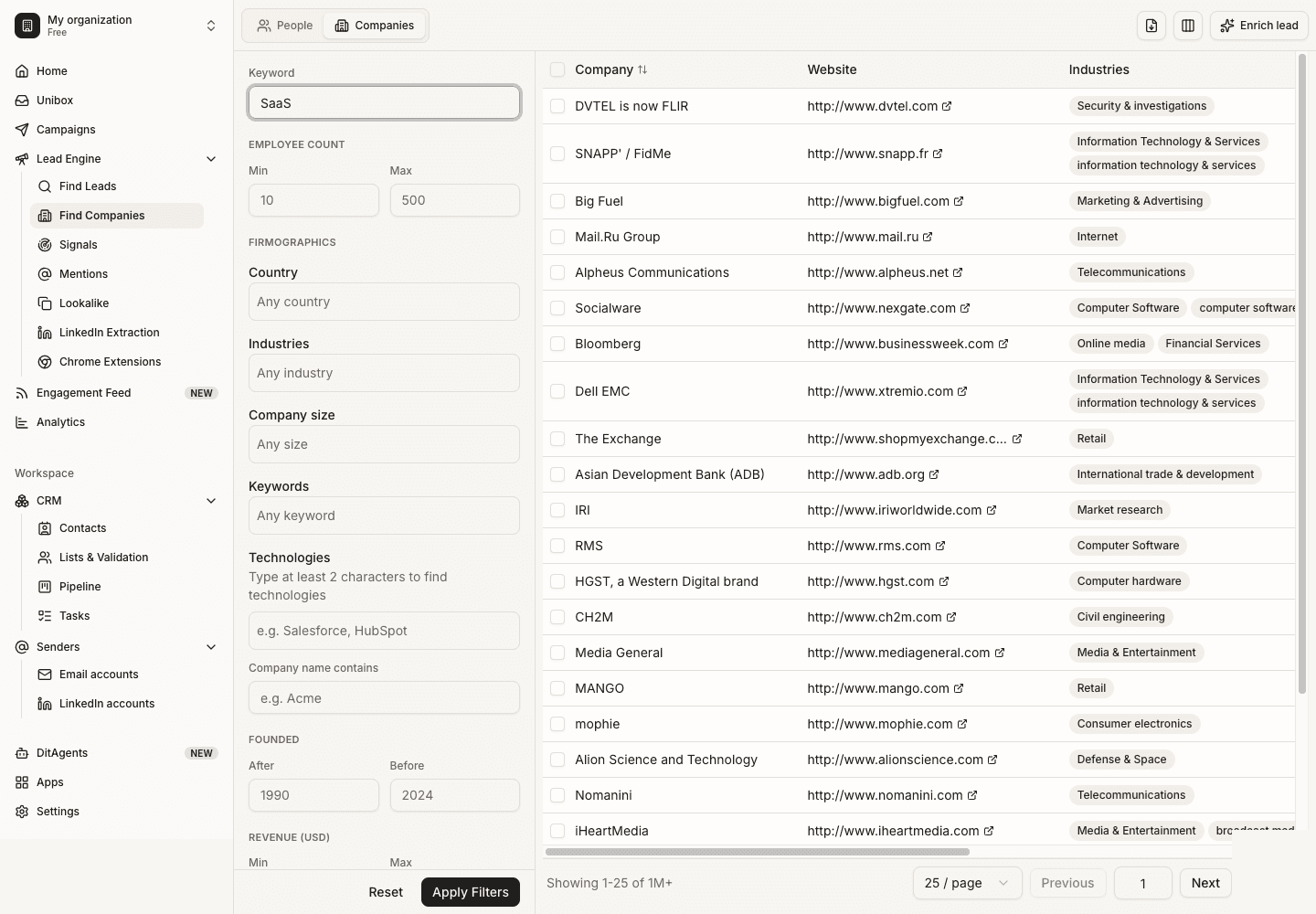
Use company search and the Technologies field
- Open Companies in DitLead Lead Finder.
- Set the supported country and employee-count range.
- Search Technologies for Shopify and select an available catalog match.
- Add an industry criterion only when it helps describe the actual account.
- Apply the filters and inspect sample companies.
- Open relevant company websites and record current source evidence before using the signal in a message.
Available matches and company coverage depend on indexed data. If the catalog does not return the required match, do not assume that spelling a technology in free text creates a supported filter. The technology-filter walkthrough explains the interface.
Check what the technology observation actually means
A detection can be incomplete or stale. A storefront may belong to a different brand or subsidiary than the record you selected. Server-side tools and private workflows may not be visible. Review the domain and available first-party evidence before asserting that the prospect uses a particular setup.
Keep the observation date separate from the date you looked at the source. If the claim matters to integration compatibility, verify the supported function instead of relying on a broad platform label. The technographic prospecting guide provides examples of integration, replacement and complementary-service offers.
Find the relevant buyer, not only the company
Store operations, ecommerce, analytics and engineering may own different parts of the workflow. Research the current role and responsibility. If ownership is unclear, ask a routing question rather than declaring that a named person must have a problem.
Use the research worksheet to record fit, source, checked date and uncertainty. Do not turn a public company match into a guessed contact address or expose prospect personal data in examples.
Write a platform-relevant message
Hi [first name],

Your store appears to use Shopify. We configure [supported analytics workflow] for Shopify stores.

Who looks after that workflow at [company]?

[your name]
This illustrative message needs a verified platform premise and an offer you actually support. It does not claim that the prospect’s reporting is broken or promise a percentage improvement. These personalization examples show how to leave unsupported assumptions out.
Choose list-building or an agent workflow
Technology lookup in company search is the product path for technology-based selection. For one-off domain checks, compare working detectors in the technology-tools guide.
Auto Outreach starts from your business website and proposes audiences and campaigns. Review its sample matches against your niche and actual offer. DitLead provides the mailboxes when Auto Outreach is enabled. Previewing your website does not send emails.